2008年10月2日 星期四

WINE 解決中文亂碼

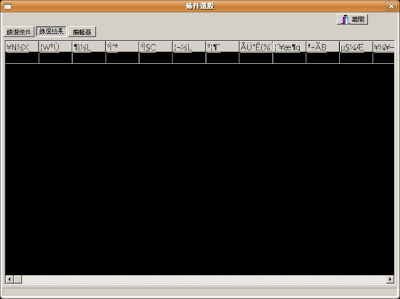
剛裝完的WINE,執行Notepad,無法正常輸入中文…(當字型為System時)當然如果把Notepad的字型改為中文字體是可以正常顯示的,但偏偏有些軟體,並沒辦法讓你設定表單的字型,ex: exChart2的條件選股的標題嘍 = ="


  • WINE中文字型解決

1.將Windows中的字型mingliu.ttc 複製至 ~/.wine/driver_c/windows/Fonts
2.編輯font.reg

REGEDIT4

[HKEY_LOCAL_MACHINE\Software\Microsoft\Windows NT\CurrentVersion\FontSubstitutes]
"Arial"="Arial"
"Arial CE,238"="PMingLiU"
"Arial CYR,204"="PMingLiU"
"Arial Greek,161"="PMingLiU"
"Arial TUR,162"="PMingLiU"
"Courier New"="Courier New"
"Courier New CE,238"="PMingLiU"
"Courier New CYR,204"="PMingLiU"
"Courier New Greek,161"="PMingLiU"
"Courier New TUR,162"="PMingLiU"
"MingLiU"="MingLiU"
"PMingLiU"="PMingLiU"
"FixedSys"="PMingLiU"
"Helv"="PMingLiU"
"Helvetica"="PMingLiU"
"MS Sans Serif"="PMingLiU"
"MS Shell Dlg"="PMingLiU"
"MS Shell Dlg 2"="PMingLiU"
"System"="PMingLiU"
"Tahoma"="PMingLiU"
"Times"="Times"
"Times New Roman"="Times New Roman"
"Times New Roman CE,238"="PMingLiU"
"Times New Roman CYR,204"="PMingLiU"
"Times New Roman Greek,161"="PMingLiU"
"Times New Roman TUR,162"="PMingLiU"
"Tms Rmn"="PMingLiU"

3.匯入剛編輯的reg檔

~/.wine/driver_c/windows/regedit.exe
入匯入registry


修改完後....
中文顯示已正常嘍...
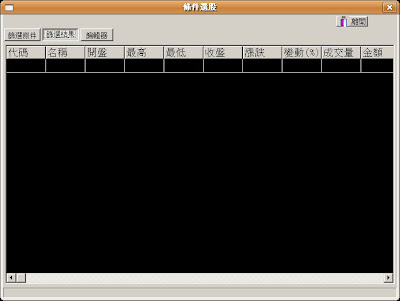


(參考出處:http://www.tmes.mlc.edu.tw/wiki/index.php/Wine)

2008年10月1日 星期三

Ubuntu安裝 IE 瀏灠器可支援的Java

有些 ie only 網站,非得必要使用 IE 才有辦法瀏灠,使用Lazybuntu安裝WINE + ies4linux可以很快的安裝ok,但如果使用ies4linux瀏灠Java Applet的網站時,就得用些方法嘍!

  • 下載Java 1.5_16
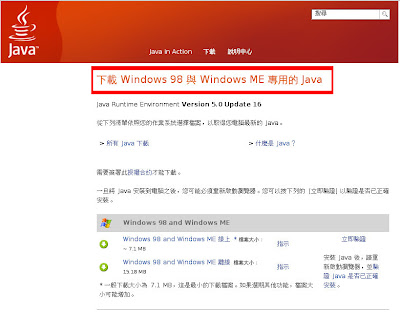
使用IE瀏灠至http://www.java.com/,由網站自動判動可支援的Java版本為Java Runtime Environment Version 5.0 Update 16


查看ies4linux下的WINE模擬的Windows版本,應該是Windows 98,試過調為WindowsXP,但無法正常安裝JRE

設定WINE執行環境
$export WINEPREFIX=/home/YourAccount/.ies4linux/ie6

執行WINE Config
$winecfg


  • 安裝JRE

$export WINEPREFIX=/home/YourAccount/.ies4linux/ie6
$ wine YourJREPath/jre-1_5_0_11-windows-i586-p.exe


如果出現如下圖的中文亂碼時…請參考「WINE 解決中文亂碼」,只是路徑原本為~/.wine/xxx 改為 ~/.ies4linux/ie6/xxx


  • 設定Java

$export WINEPREFIX=/home/YourAccount/.ies4linux/ie6
$wine regedit

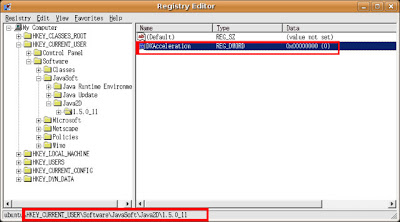
修改HKEY_CURRENT_USER\Software\JavaSoft\Java2D\1.5.0_11\DXAcceleration機碼,值為"0"

瀏灠看看

再來,解決中文問題
從Windows系統Copy mingliu.ttc至ubuntu系統的 ~/.ies4linux/ie6/drive_c/Program Files/Java/jre1.5.0_11/lib/fonts

2008年9月21日 星期日

批次修改文件權限

從其他外接式硬碟拷貝回來的檔案,所有的權限被改為rwxrwxrwx(777),於是用了下列指令,一次改回。


chmod 644 -R * //檔案預設權限為rwxr--r--(644)
chmod 755 `find -type d` //目錄預設權限為rwxr-xr-x(755)


或者


find path -type f -exec chmod 644 {} \;
find path -type d -exec chmod 755 {} \;

BlockQuote區塊

  • 加入縮排CSS樣式加入Blogger範本


blockquote {
margin: 15px 30px 0 20px;
padding: 10px;
border: 2px dashed #cde;
display:block;
overflow:auto;
}
blockquote blockquote{
margin: 10px;
padding: 0px;
padding-left: 5px;
border: 1px dashed #ccc;
border-left: 5px groove #2222ff;
display:block;
overflow:auto;
max-height:300px;
}
blockquote p {
margin-top: 0;
}


範例:

縮排…


http://chenkaie.blogspot.com/2006/11/css-cool-blockquote-for-code-style.html

2008年9月20日 星期六

Blogger加入Code Block樣式(CSS)

  1. 修改Blogger的網頁範本HTML,並在程式碼中加入下列描述

  2. code {
    display: block; /* fixes a strange ie margin bug */
    font-family: Courier New;
    font-size: 9pt;
    overflow:auto;
    background: url(http://bloggerhacks.googlecode.com/files/Code_BG.png) left top no-repeat;
    border: 1px dotted #777;
    padding: 10px 5px 10px 20px;
    max-height:170px;
    line-height: 1.3em;
    margin: 10px 40px 10px 30px;
    }
    code.ref {
    display: block; /* fixes a strange ie margin bug */
    overflow:hidden;
    background: url(http://bloggerhacks.googlecode.com/files/Code_REF.png) left top no-repeat;
    border: 1px dotted #a88;
    font-size: 13px;
    font: normal normal 100% 'Lucida Grande',Georgia,'Trebuchet MS';
    line-height: 1.6em;
    }


    如下圖:


  3. 在文章中加入code block


  4. <code>
    ...
    </code>


  5. 加入Reference Code


  6. <code class="ref">
    ...
    </code>


http://chenkaie.blogspot.com/2006/11/css-cool-blockquote-for-code-style.html

2008年9月18日 星期四

GIMP批次轉檔(縮圖)

  • 下載script
這裡下載batch resize plug-in(batch-resize.py)

  • 安裝batch-resize.py
  1. 將此batch-resize.py放在GIMP plug-in資料夾,可從GIMP「檔案-->偏好設定-->資料夾-->增強模組」查看
  2. chmod +x batch-resize.py,使此script可被執行
  • 執行批次縮圖
  1. 由GIMP「擴展-->Plug-in Browser」可查看此script的執行參數
  2. 執行GIMP「擴展-->Phtyon-Fu-->Console」
  3. 在Console視窗輸入
>>> pdb.python_fu_batch_resize(".png", "/tmp", 640, ".resize", ".png", 0, 0, "/tmp")

2008年9月16日 星期二

Ubuntu新機測試

幾年前一段時間研究過RedHat Linux,但僅僅只用來架Server,但從沒想過拿來取代桌機作業系統…最近使用Vista,突然覺得自己的電腦配備好糟,一氣之下決定棄Microsoft擁Linux…


  • 安裝

安裝沒什麼困難的地方…
分割區除了 / (root) 給5G,swap給2G,其餘全給了 /home

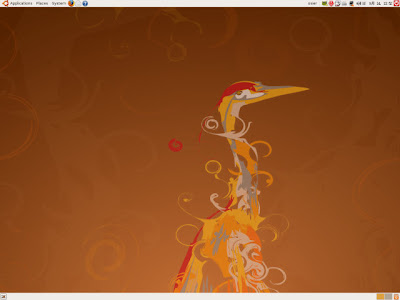
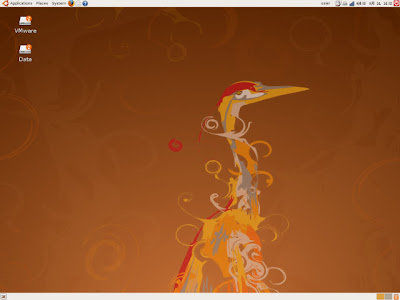
乾淨的桌面


  • 其他必備的軟體

Firefox 3.0.1 + Google Toolbar

google書籤必備…


LazyUbuntu
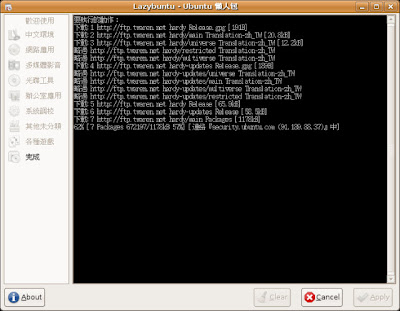
懶人包強力推蔫…節省好多找軟體的時間(中文環境、pcman、aMule、wine+ie6、多媒體套件、燒錄軟體&解壓縮工具等…)


Google Picasa for Linux
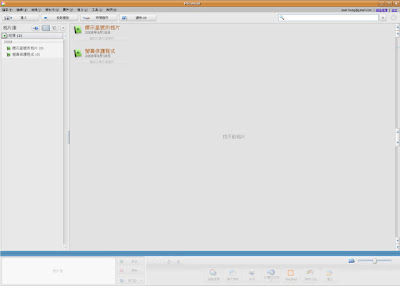
部落格照片上傳工具…已經支援Linux


WINE - Linux下模擬Windows環境好工具
雖然大部份的程式都已轉換到Ubuntu環境,但有些好用的Windows程式還是暫時找不到可代替,或者說…還沒時間學新的軟體@@"

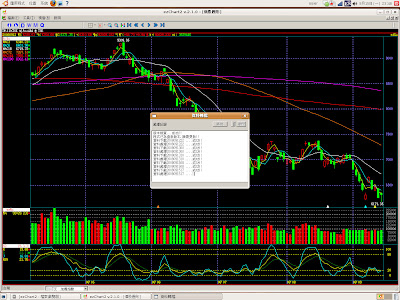
ezChart2 on WINE


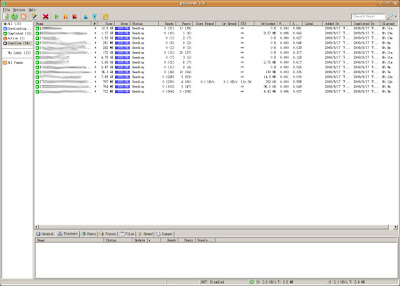
uTorrent on WINE
rTorrent其實可取代,但還是懶得學...


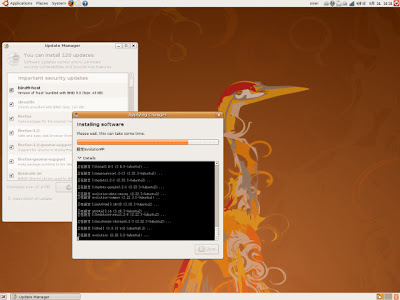
與Windows相似的Updating


Wireless
設定已經相當簡單了


外接式磁碟機
隨插即用usb磁碟機


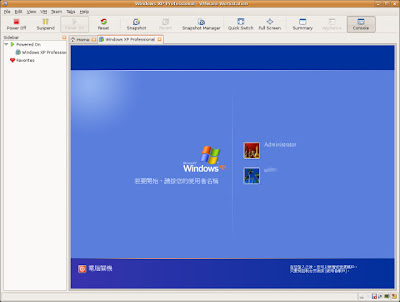
VMWare on Ubuntu