2014年1月22日 星期三

怎樣把Evernote的內容發佈到blogger

用了一陣子的evernote,覺的比寫blooger容易上手,可以更容易整理資料(擷取資料)
但如果要同步到blooger又得重來,找了網路上一些教學,來試試怎麼把Evernote打好的文章
直接發佈到你的blooger吧

1.先在blogger設定行動裝置及電子郵件
2.在Evernote的程式裡,選擇要發佈的文章,再選「記事->共用->透過電子郵件傳送」


3.剛剛寄到xxx@blogger.com的文章就出現在Blogger裡了,我習慣先放在草稿,修改後再正式發佈


在Blogger裡加入寶寶的生日計數

找了幾個blog 覺得http://www.snowbaby.jp/blogparts/這個最可愛,適合我們的荳妮妮

透過下面的視窗設計好喜歡的樣式後,按左下角的複製程式碼,

然後到Blogger裡加入一個HTML/JavaScript小工具,直接把程式碼貼上,套用即完成


2010年4月21日 星期三

【轉】什麼是窩心

什麼是窩心? 例如有人在你病倒或受傷時,比你更緊張;除了出言關懷之外,還實實在在陪你看醫生。例如有人可以陪你去吃你喜歡,而他又喜歡的東西;而他不會只讓你吃,而是投入的與你一起享受好吃的東西,不滿難吃的東西。例如一起看一份報紙的時候,他不會跟你爭你喜歡看的娛樂版,而且先看其他版面。例如他能夠跟你說無聊的事情之餘,亦可以正正經經跟你研究生活上的問題,更可袲你學懂其他你不懂的事。例如他可以陪你去唱片店,又可以帶你去書店,看一些你原本不大興趣看而又可以解釋給你聽的。

1.我愛你不是因為你是誰,而是我在你面前可以是誰。

2.沒有男人或女人是值得你為他流眼淚,值得的那一位,不會要你哭。

3.那人不是你所想般愛你,但不代表那人不是全心全意地愛你。

4.一個真正的朋友是向著你伸手,觸動你心靈的人。

5.掛念一個人最差的方式,就是你坐在他身旁,而知道你不能擁有他。

6.就算你不快樂也不要皺眉,因為你永不知道誰會愛上你的笑容。

7.在世界裡你可能只是某人,但對某人你可能是全世界。

8.不要花時間在一個不會花時間在你身上的人。

9.可能神要我們在遇到那位對的人之前先遇上一些錯的人,讓我們遇到那位對先生對小姐時懂得珍惜。

10.不要因為完結而哭,要為曾經發生而微笑。

11.這個世界永遠也會有一些傷害你的人,你要做的就是繼續去信人和小心你下次信的人。

12.在你嘗試了解其他人和盼望其他人明白你之前,先把你自己變成一個更好的人和了解你自己。

13.不要太努力去找,最好的東西是在你最預計不到的時候出現。

2010年4月20日 星期二

紅燒茄子

材料:
主料:茄子500克,
輔料:薑,紅辣椒,八角各適量
調料:豆瓣醬1大匙,鹽,糖各半小匙,醬油1小匙,壺底油半小匙,香油小半匙

作法:
1. 茄子去頭尾,切3厘米長段;薑蒜蔥切末,紅辣椒切薄片。
2. 兩杯油燒熱,放入茄子炸軟撈出。
3. 鍋中留1大匙油燒熱,放入薑炒香,加紅辣椒,八角,豆瓣醬,醬油和過油的茄子,翻炒一下,加入紅辣椒片和生抽,淋上香油即可出鍋。

紅燒茄子的秘訣:
1. 紅燒茄子的秘訣是不能加水,茄子要先稍微炸一下。
2. 做這道菜的關鍵是不能加水,加水後紅燒茄子會發黑,且易爛成一堆,影響食慾。
茄子本身清淡無味,但極易吸收醬汁和辛香料味道,烹調前可先略炸一下,然後加薑和醬油、壺底油等調味上色。

九層塔炒茄子

材料:
茄子3-4支
九層塔適量
蒜4-5顆
辣椒1支
醬油1大匙
糖1大匙
水1大匙

做法:
1.將茄子洗淨斜切,滾水燙過後撈起蒜用刀拍碎,辣椒切片,九層塔洗淨備用
2.將油爆香後放入蒜、辣椒、茄子快炒,再將調味料放入以小火燜煮至入味
3.起鍋前加入九層塔適量拌炒幾下即可

2010年3月17日 星期三

如何使Gparted可以格式化成NTFS與HFS+

sudo apt-get install hfsplus hfsutils hfsprogs ntfsprogs

2009年10月20日 星期二

大批縮圖

1.安裝套件


sudo apt-get install imagemagick


2.撰寫bash script


#!/bin/bash
for i in `ls *.jpg`;
do
convert $i -resize 800×600 $i
done


http://ubuntuchocolate.wordpress.com/2007/09/22/howto-batchmass-image-resize/

2009年10月11日 星期日

在Ubuntu的Opera啟用Java

1.先檢查Ubuntu中是否有安裝Java

dpkg --get-selections | egrep java

2.在Opera中啟用Java

ref:http://www.opera.com/support/kb/view/459/

  • Go to Tools > Preferences > Advanced > Content.
  • Click the "Java options" button. If this button is dimmed, first check the "Enable Java" option.
  • Click the "Choose" button for the "Java path" field.
  • Navigate to the Java directory and click "OK". The path you are looking for is the directory of your Java installation containing the files libjava.so and libawt.so. On the command line, type: find / -name libjava.so 2> /dev/null 
    For example, on a Debian system, the path is: /usr/lib/jvm/java-1.5.0-sun/jre/lib/i386
  • Click the "Validate Java path" button. If you get an error message, try again with a different path.
  • Click "OK" to save your changes and exit the Java dialog.
  • Click "OK" to save your changes and exit the Preferences dialog.

2009年6月26日 星期五

Ubuntu 9.04 NotifyOSD

https://wiki.ubuntu.com/NotifyOSD
參考
Ubuntu 9.04新的Notifcation機制
但在安裝IBM T42的過程中,音量調整及螢幕亮度調整時,無法出現On-Screen OSD顯示
如何調整

sudo -i
echo 0x00ffffff > /proc/acpi/ibm/hotkey

2009年6月25日 星期四

[轉貼]Search for Install Packages from the Ubuntu Command Line

Source

When you are trying to install software on Ubuntu or Debian linux using the apt-get package system, quite often you’ll forget the exact name of the package you are trying to install. Here’s how you can get a little help figuring out what the name is.

Syntax:

apt-cache search SearchTerm

Example:

> apt-cache search monodevelop

monodevelop – C#/Boo/Java/Nemerle/ILasm Development Environment
monodevelop-boo – Boo plugin for MonoDevelop
monodevelop-java – Java plugin for MonoDevelop
monodevelop-nunit – NUnit plugin for MonoDevelop
monodevelop-query – MonoQuery plugin for MonoDevelop
monodevelop-versioncontrol – VersionControl plugin for MonoDevelop

Rather useful, no? I’ve found it very useful even when I know the name of the package I’m trying to install, you can figure out what the names of extra plugins are, as in the above example. I had initially installed monodevelop, but didn’t realize there was nunit and version control plugins for it.

You may also want to run the results through a more, or even a grep. For instance:

> apt-cache search firefox | grep plugin

libflash-mozplugin – GPL Flash (SWF) Library – Mozilla-compatible plugin
mozilla-helix-player – the helix audio and video player (browser plugin)
j2re1.4-mozilla-plugin – Java plugin for mozilla/firefox
mozilla-acroread – Adobe Acrobat(R) Reader plugin for mozilla / konqueror
totem-gstreamer-firefox-plugin – Totem Firefox Plugin – gstreamer version
totem-xine-firefox-plugin – Totem Firefox Plugin – xine version

[轉貼]Install Mplayer and Multimedia Codecs (libdvdcss2,w32codecs,w64codecs) in Ubuntu 9.04 (Jaunty)

Source
MPlayer is a movie and animation player that supports a wide range of codecs and file formats, including MPEG 1/2/4,DivX 3/4/5, Windows Media 7/8/9, RealAudio/Video up to 9, Quicktime 5/6, and Vivo 1/2. It has many MX/SSE (2)/3Dnow(Ex) optimized native audio and video codecs, but allows using XAnim’s and RealPlayer’s binary codec plugins, and Win32 codec DLLs. It has basic VCD/DVD playback functionality, including DVD subtitles, but supports many text- based subtitle formats too. For video output, nearly every existing interface is supported. It’s also able to convert any supported files to raw/divx/mpeg4 AVI (pcm/mp3 audio), and even video grabbing from V4L devices.
Install Mplayer in Ubuntu 9.04 (Jaunty)

You need to add the following lines to /etc/apt/sources.list file or you need to make sure you have enabled Universe and multiverse repositories Using GUI.

sudo gedit /etc/apt/sources.list

Make sure you have the following two lines save and exit your file

deb http://archive.ubuntu.com/ubuntu jaunty universe multiverse
deb-src http://archive.ubuntu.com/ubuntu jaunty universe multiverse

Now you need to run the following command to update the source list

sudo apt-get update

Install mplayer using the following command

sudo apt-get install mplayer

If you want to open mplayer go to Applications—>Sound&Video—> Mplayer Movie Player

Install Mplayer Front-end

1) Smplayer

Qt Mplayer front-end, with basic features like playing videos, DVDs, and VCDs to more advanced features like support for MPlayer filters and more. One of the most interesting features of SMPlayer: it remembers the settings of all files you play. So you start to watch a movie but you have to leave… don’t worry, when you open that movie again it will resume at the same point you left it, and with the same settings: audio track, subtitles, volume…

sudo apt-get install smplayer

Install smplayer themes using the following command

sudo apt-get install smplayer-themes

2) gnome-mplayer

A simple GUI for MPlayerIt provides a simple and clean interface to MPlayer. GNOME MPlayer has a rich API that is exposed via DBus. Using DBus you can control a single or multiple instances of GNOME MPlayer from a single command.GNOME MPlayer can be used to play media on websites when used in conjunction with Gecko Mediaplayer.

Install gnome mplayer using the following command

sudo apt-get install gnome-mplayer

Install libdvdcss2 and w32 video codecs in Ubuntu 9.04 (Jaunty)

Support for WMV, RealMedia and other formats has been bundled into the w32codecs package. This package is not available from the Ubuntu repositories due to licensing and legal restrictions.To play encrypted DVDs, the libdvdcss2 package is essential.

For Ubuntu 9.04 (Jaunty) Users use the following procedures

sudo wget http://www.medibuntu.org/sources.list.d/jaunty.list --output-document=/etc/apt/sources.list.d/medibuntu.list

Then, add the GPG Key using the following commands

sudo apt-get update

sudo apt-get install medibuntu-keyring

sudo apt-get update

For i386 Users install Codecs using the following command

sudo apt-get install w32codecs libdvdcss2

For amd64 Users install Codecs using the following command

sudo apt-get install w64codecs libdvdcss2

Using above download locations you can install most of the mutimedia codecs for ubuntu.

Mplayer Plugin for Firefox

If you want to install Mplayer with plug-in for Mozilla Firefox run the following command

sudo apt-get install mozilla-mplayer

2009年2月19日 星期四

ubuntu 更新dns cache

Ubuntu Flush DNS Cache

安裝nscd
sudo aptitude install nscd

重新啟動nscd daemon
sudo /etc/init.d/nscd restart

2009年2月17日 星期二

Ubuntu手動清除垃圾筒資料

cd
cd ~/.local/share/Trash/files

sudo rm -fr *

2008年11月24日 星期一

Vmware 6.5鍵盤對映錯誤

安裝完Ubuntu 8.10 + Vmware 6.5 Guest OS的鍵盤對映錯亂了
無法使用[HOME][END][INSERT][DEL]等key

echo 'xkeymap.nokeycodeMap = true' > ~/.vmware/config

重開Guest OS,測試正常

2008年11月16日 星期日

Ubuntu 8.10 安裝Codecs

Windows中,常用的播放器k-lite mega codecs幾乎可支援大部份的媒體格式了
Ubuntu 8.04中,用了Lazybuntu安裝了許多套件,在8.10中還未測試過Lazybuntu,
於是手動安裝了下列跟媒體播放有關的套件


http://www.medibuntu.org/
http://ubuntu-8-1.blogspot.com/2008/07/downlaod-codec-ubuntu-video-problems.html
http://linuxpoison.blogspot.com/2008/11/multimedia-support-in-ubuntu-810.html

安裝Swiftfox

據說…base on firefox更快的瀏覽器

1.首先,先知道自己主機的cpu類型

cat /proc/cpuinfo


2.至http://getswiftfox.com/deb.htm下載適合的安裝套件

3.點選安裝


4.SwiftFox的效能測試
http://wd-testnet.world-direct.at/mozilla/dhtml/funo/jsTimeTest.htm


5.FireFox的效能測試


6.中文化
下載繁體中文add-om
http://releases.mozilla.org/pub/mozilla.org/firefox/releases/3.0.3/linux-i686/xpi/zh-TW.xpi


7.在網址列上輸入 about:config ,搜尋 general.useragent.locale ,並將字串由en-US 改為 zh-TW

2008年11月14日 星期五

無蝦米


sudo apt-get install gcin
sudo /usr/share/gcin/script/noseeing-inst

sudo apt-get remove scim

sudo apt-get install im-switch (略)
im-switch -z zh_TW -s gcin (略)


http://cle.linux.org.tw/trac/
http://www.wmfield.idv.tw/498
http://overinfinityresearch.blogspot.com/2007/10/scimgcin.html
http://cle.linux.org.tw/trac/wiki/GcinInstallBoshiamy

查詢套件


dpkg --get-selections | grep XXXX


http://wiki.ubuntu.org.cn/index.php?title=Apt%E5%92%8Cdpkg%E5%BF%AB%E9%80%9F%E5%8F%82%E8%80%83&variant=zh-tw

2008年11月12日 星期三

檢查ubuntu版本

1.使用lsb-release

lsb-release -a


2./etc/lsb-release

cat /etc/lsb-release

3.「系統-->關於ubuntu」

2008年10月2日 星期四

WINE 解決中文亂碼

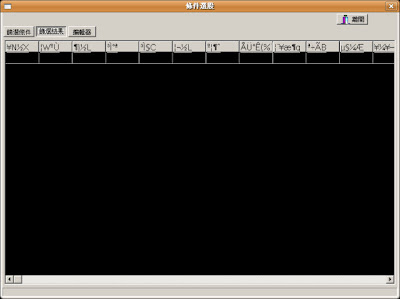
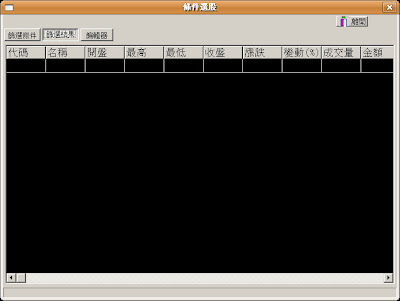
剛裝完的WINE,執行Notepad,無法正常輸入中文…(當字型為System時)當然如果把Notepad的字型改為中文字體是可以正常顯示的,但偏偏有些軟體,並沒辦法讓你設定表單的字型,ex: exChart2的條件選股的標題嘍 = ="


  • WINE中文字型解決

1.將Windows中的字型mingliu.ttc 複製至 ~/.wine/driver_c/windows/Fonts
2.編輯font.reg

REGEDIT4

[HKEY_LOCAL_MACHINE\Software\Microsoft\Windows NT\CurrentVersion\FontSubstitutes]
"Arial"="Arial"
"Arial CE,238"="PMingLiU"
"Arial CYR,204"="PMingLiU"
"Arial Greek,161"="PMingLiU"
"Arial TUR,162"="PMingLiU"
"Courier New"="Courier New"
"Courier New CE,238"="PMingLiU"
"Courier New CYR,204"="PMingLiU"
"Courier New Greek,161"="PMingLiU"
"Courier New TUR,162"="PMingLiU"
"MingLiU"="MingLiU"
"PMingLiU"="PMingLiU"
"FixedSys"="PMingLiU"
"Helv"="PMingLiU"
"Helvetica"="PMingLiU"
"MS Sans Serif"="PMingLiU"
"MS Shell Dlg"="PMingLiU"
"MS Shell Dlg 2"="PMingLiU"
"System"="PMingLiU"
"Tahoma"="PMingLiU"
"Times"="Times"
"Times New Roman"="Times New Roman"
"Times New Roman CE,238"="PMingLiU"
"Times New Roman CYR,204"="PMingLiU"
"Times New Roman Greek,161"="PMingLiU"
"Times New Roman TUR,162"="PMingLiU"
"Tms Rmn"="PMingLiU"

3.匯入剛編輯的reg檔

~/.wine/driver_c/windows/regedit.exe
入匯入registry


修改完後....
中文顯示已正常嘍...


(參考出處:http://www.tmes.mlc.edu.tw/wiki/index.php/Wine)